REVIEW: The best yet most affordable network switch (TPLink WR902AC)

I like that block for wiring in 3.3V to TPlink....soldering to the test pins was a major PITA

Thanks, Ray! That’s a trick I learned from @AngeloVRA. He’s my DIY circuit Sherpa.

(And soldering the block to the TPLink was a huge PITA… first attempt failed with a cold joint. Second attempt took).
 
Operative theory is cutting off all noise over the wire
My configuration then will be a big test. I plan first to have the TP-Link client feeding my LHY SW-6 in place of my hardwired Ethernet to that switch. See how that sounds. Then jump over that switch entirely and have it directly feed my RS130. The part that will be interesting is that I found the best link (so far) to my RS130 to be fiber optic (SM) from the SW6 to the streamer. So I’ll be replacing that with a WiFi but Ethernet copper in.
 
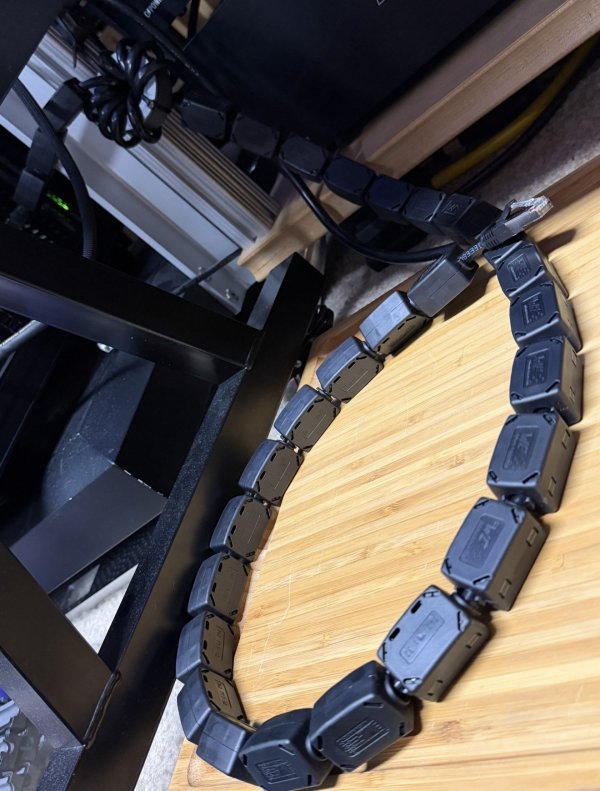
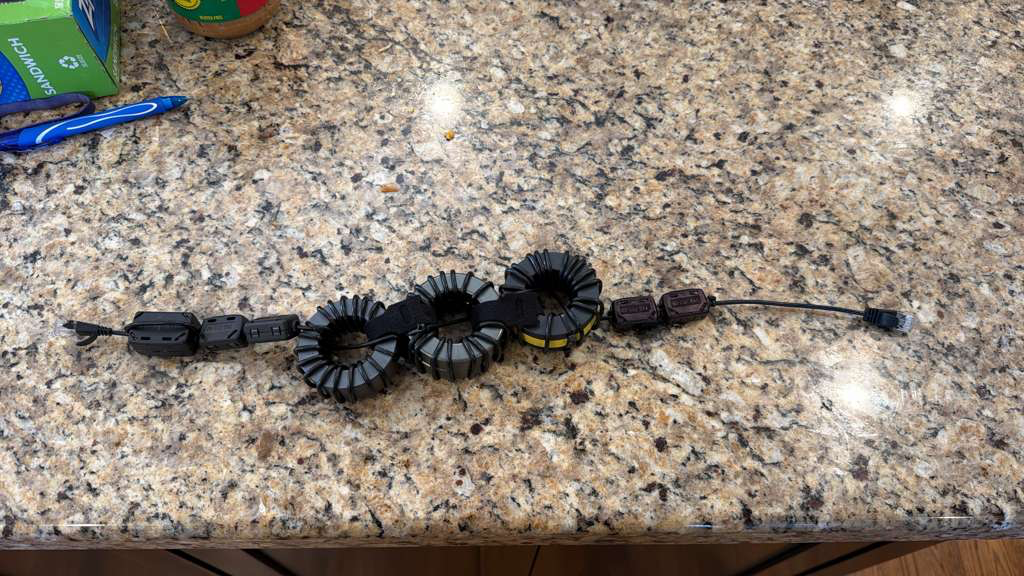
Another trick I employed in my solution was building a “balun-inspired throttle cable” (source redacted by request).

I made mine out of a @QSA-LANEDRI Veridion Discovery ethernet cable and a lot of Wurth Electronic snap-on ferrites (Mouser # 710-74271132S) and a ferrite ring (Mouser # 710-74270191)…

IMG_1363.jpeg

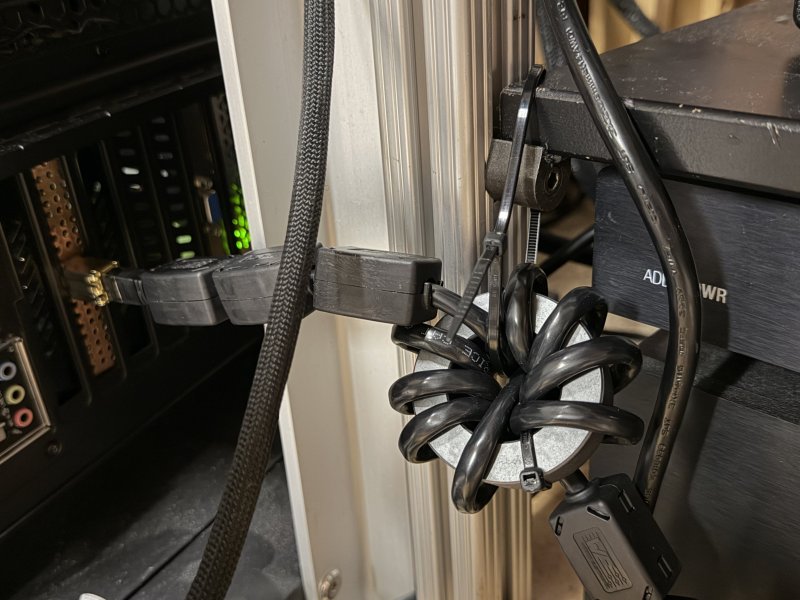
It’s worth (wurth?) noting that with all these Ferrites clamped on the cable it is HEAVY. To avoid destroying the port on the Taiko Extreme Network card it is connected to, I had to use a zip-tie to my rack through the ferrite core to bear the weight of it!

IMG_2200.jpeg
IMG_2199.jpeg

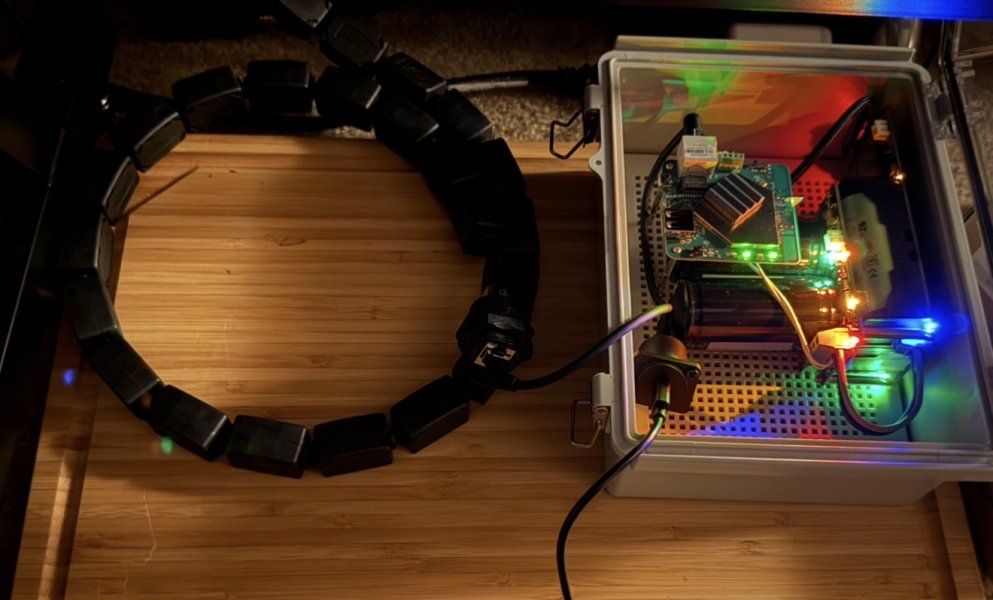
(The eagle eyed will spy that I have cables running up and over the lip of the box. Such is the way with DIY — I still have to drill / cut some holes and mount the ports to the enclosure properly... But for now, this serves me well!)

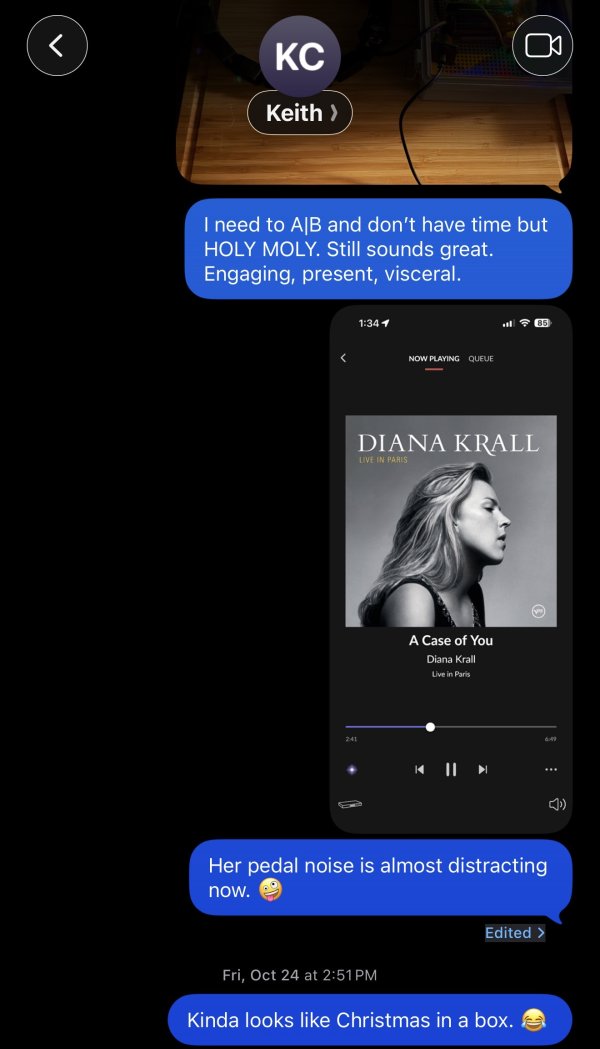
Impressions I sent Keith after getting it all out together:

IMG_2201.jpeg
 
Last edited:
  • Like
Reactions: Magnuska and keithc
I stand corrected; it is not a network switch in sense of a product definition, but rather in use for our audio chain.
I directly connect it via a LAN cable (Network Acoustics Muon Pro) to my server. It replaced the Taiko Switch which was then further connected upstream via other switches; instead the TPLink talks to the wifi router in another room (bypassing all the actual switches and ethernet lines that used to be in place). From my server's standpoint, Roon sees nothing different; it's the same network.

Ok, So you had all cable connection and now have an wifi connection?
 
Ok, So you had all cable connection and now have an wifi connection?

Yes. Home wifi mesh system, then in the listening room the TPLink on battery -> streamer.
 
IIRC Eric (author on the German site) reported that with upgraded power he did not hear a difference with OpenWRT. I did not try it myself, I've been using the stock operating environment (with upgraded power)

OpenWRT got lots of kernel modules for supporting a wide range of hardware

https://openwrt.org/packages/index/kernel-modules

While USB 2.0 is limited to 480 Mbps, we could still get quite a bit higher than 100 Mbps when we're connecting one of those Gigabit USB Ethernet adapters

https://openwrt.org/packages/pkgdata/kmod-usb-net-rtl8152
https://openwrt.org/packages/pkgdata/kmod-usb-net-asix-ax88179

As always we could actually find a fancy one like this

https://www.soundaware.net/newsinfo/1073724.html
https://www.soundaware.net/productinfo/1533300.html
https://www.aliexpress.com/item/1005010044792226.html
 
I am feeding the TPLink into my Taiko Router (via ethernet) -> Taiko Switch (via DAC cable) -> Taiko I/O NIC (via DAC cable) -> Taiko Olympus (via XDMI cable) and all is working fine for me

Hi Ray. Quick question. Can you think of any reason why the TPLink into a Taiko Router and then the Router into an Olympus via DAC cable would not also work? In other words, no Taiko Switch and no I/O. I have the Taiko Router on order but not the Switch.
 
@keithc I just bought one for yucks. It will be competing with my Ediscreation Network Silent Switch which replaced my EtherRegen when it failed. I have a 1000WH Jackery power station that should power this thing for a good long while. No idea if it will sound better than the wall wart but it is worth a try.

So this thread has blown up so quickly I just want to summarize my understanding of the best way to use the TL-WR902AC. Assuming I get it right it may be helpful to others and if I got something wrong please correct me.

1) Use TP-Link TL-WR902AC travel router https://www.amazon.com/dp/B01N5RCZQH
2) Using battery power improves sound. 5V USB-C connection. You like this one https://www.amazon.com/dp/B0D5CQ9CHQ
3) Connect TL-WR902AC to whatever router you use for your home internet over 2.4 Ghz WiFi
4) For best results configure the TL-WR902AC to disable 5 Ghz WiFi
5) Connect TL-WR902AC to streamer/server/Roon endpoint with a high quality Ethernet cable
6) Further marginal performance improvements might be achieved with different batteries or by direct wiring a 3.3V DC battery powersource.

Please let me know if any of the above is incorrect or incomplete.
 
So this thread has blown up so quickly I just want to summarize my understanding of the best way to use the TL-WR902AC. Assuming I get it right it may be helpful to others and if I got something wrong please correct me.

1) Use TP-Link TL-WR902AC travel router https://www.amazon.com/dp/B01N5RCZQH
2) Using battery power improves sound. 5V USB-C connection. You like this one https://www.amazon.com/dp/B0D5CQ9CHQ
3) Connect TL-WR902AC to whatever router you use for your home internet over 2.4 Ghz WiFi
4) For best results configure the TL-WR902AC to disable 5 Ghz WiFi
5) Connect TL-WR902AC to streamer/server/Roon endpoint with a high quality Ethernet cable
6) Further marginal performance improvements might be achieved with different batteries or by direct wiring a 3.3V DC battery powersource.

Please let me know if any of the above is incorrect or incomplete.

Hi Paul:

Thanks for summarizing! Yes, I recommend using the TPLink and that specific Anker battery pack as a specific combination. For steps 3-5,
here are the step by step instructions; in essence, the goal is to turn off everything that is not critical to low-noise streaming and then turn off the device's access point features as the last step which makes it a client extension of your home's wifi.

Setup WR902AC:
1. Look at the back of the unit. It should say the name of the device Wifi.
2. Power up the unit using the 5V micro USB. Give it a minute.
3. On a computer select the 2.4Ghz Wifi from the TPLink. Type in the password, this is on the back label on step #1.
4. Once you’re connected, go to http://tplinkwifi.net
(If this step does not work use a fresh browser after deleting the cache)
5. The first time it will force you to set a new admin password.
6. Once you’re in the menu, cancel the quick setup.
7. On the left bar go to the Wireless 5Ghz. Turn off this radio.
8. Go to USB settings. Under Storage Sharing and FTP Server tabs disable both.
9. Go to System Tools, Time Settings, and click on Daylight Savings, Save, Get time from PC, Save. Close the browser.
10. Unplug the power from the TPLink.
11. On the left side of the device move the physical toggle down to CLIENT.
12. Reattach the power. Select the TPLink wifi again and connect.
13. Open the browser again and go back to TPLinkwifi.net
14. Go to Quick Setup. Click Next. Now select CLIENT. Next.
15. There should be a list of your home’s 2.4Gz wifi channels. Select your Wifi with the highest signal strength. On the next screen it will ask for your Wifi password. Click Next, then Next.
16. At the end of the setup it will ask you to click FINISH. Then the device will reset. This will take 2 minutes.
17. At this point the TPLInk Wifi ID will disappear from your computer’s Wifi list. The TPLink is now an extension of your home Wifi. If you connect your computer to the TPLink via LAN it will be an ethernet hotspot (turn off your computer’s Wifi first!). Run a test by opening a browser and you should have normal internet access.
18. You’re all set up! Connect the TPLink to your music server using a dedicated low-noise battery and enjoy! Make sure the battery back is detached from any charging input as that can add noise.

Let me know if you have any issues.

 
Hi Paul:

Thanks for summarizing! Yes, I recommend using the TPLink and that specific Anker battery pack as a specific combination. For steps 3-5,
here are the step by step instructions; in essence, the goal is to turn off everything that is not critical to low-noise streaming and then turn off the device's access point features as the last step which makes it a client extension of your home's wifi.

Setup WR902AC:
1. Look at the back of the unit. It should say the name of the device Wifi.
2. Power up the unit using the 5V micro USB. Give it a minute.
3. On a computer select the 2.4Ghz Wifi from the TPLink. Type in the password, this is on the back label on step #1.
4. Once you’re connected, go to http://tplinkwifi.net
(If this step does not work use a fresh browser after deleting the cache)
5. The first time it will force you to set a new admin password.
6. Once you’re in the menu, cancel the quick setup.
7. On the left bar go to the Wireless 5Ghz. Turn off this radio.
8. Go to USB settings. Under Storage Sharing and FTP Server tabs disable both.
9. Go to System Tools, Time Settings, and click on Daylight Savings, Save, Get time from PC, Save. Close the browser.
10. Unplug the power from the TPLink.
11. On the left side of the device move the physical toggle down to CLIENT.
12. Reattach the power. Select the TPLink wifi again and connect.
13. Open the browser again and go back to TPLinkwifi.net
14. Go to Quick Setup. Click Next. Now select CLIENT. Next.
15. There should be a list of your home’s 2.4Gz wifi channels. Select your Wifi with the highest signal strength. On the next screen it will ask for your Wifi password. Click Next, then Next.
16. At the end of the setup it will ask you to click FINISH. Then the device will reset. This will take 2 minutes.
17. At this point the TPLInk Wifi ID will disappear from your computer’s Wifi list. The TPLink is now an extension of your home Wifi. If you connect your computer to the TPLink via LAN it will be an ethernet hotspot (turn off your computer’s Wifi first!). Run a test by opening a browser and you should have normal internet access.
18. You’re all set up! Connect the TPLink to your music server using a dedicated low-noise battery and enjoy! Make sure the battery back is detached from any charging input as that can add noise.

Let me know if you have any issues.

That is great and so helpful. Thank you.
 
If you know what you're doing:

Make sure your streamer has a static IP address on your network. My music server with Euphony has this automatically set during setup, but it certainly won't be the case for other streamers. Better to check that first. Again, if you know what you are doing, set a static ip just for you're streamer in you're home network router.

When installing the 'Quick Setup Client Mode', choose a static IP address that you're sure is available on your home network router and disable DHCP on the TL-WR902AC. This will reduce the device's workload even more and will certainly affect the sound quality.
I haven't compared this A-B yet.
 
Last edited:
First impressions last night, without breaking in, with an old Anker powerbank I already had:

More of everything!
More space, more separation, more density, more precision, more air, more detail, more black background.
Kudos to @keithc and friends! A solid 10 for the price-quality ratio!
 
Yes. Home wifi mesh system, then in the listening room the TPLink on battery -> streamer.

Thanks. Just to please my curiosity, did you try inserting a fiber optic link in our old system? Although most network units have galvanic insulation , it is not effective at high frequencies. Only an optical insulation can assure an effective insulated connection.
 
  • Like
Reactions: audiobomber
Thanks. Just to please my curiosity, did you try inserting a fiber optic link in our old system? Although most network units have galvanic insulation , it is not effective at high frequencies. Only an optical insulation can assure an effective insulated connection.

My testing was based on good old copper. A year ago I did try optical between the Tempus and the Taiko and in my environment I found it sounded a bit sterile, so since then I have been using my QSA Lanedri ethernet cord instead. To your point though I think all of these networking solutions are very home-dependent, and we all have different environmental noises and preferences. For what it's worth I do know 2 guys who ran optical to their Taiko systems who are now using this TPLink instead.

It is worth noting that I think the TPLink's wifi is half of this equation, and the other half is the battery separation preventing any noise in home AC that will come through any PSU regardless of caliber. To substantiate this, the custom "super battery" PSU (post #3) that I have been building as a permanent 1-box solution for the TPLink has a 3000F ultracapacitor that is supposed to be completely isolated from the grid / charging circuit when in use. I threw all the audiophile stuff I could at it; furutech inlet, a 5A thermal breaker instead of a little fuse, Mundorf point to point wiring; it's AC was from my SRA Takshaka through the Shunyata conditioner. It's directly wired to the TPLink's motherboard bypassing the 5V down-regulation with as short of a shielded cable as possible. And yet.... I still so far prefer the Anker battery: My only explanation I can come up with is that no matter what, any noise that comes in from AC matters at this level. This is the reason I have been recommending this one particular Anker battery pack as a starting point (I have no idea if it is 'the best' battery packs but I do know it's better than the other one I had at home), and also to not put ANY on-grid devices between the TPLink and the streamer as that may introduce additional noise.
 
Last edited:
In case helpful, I did a lot of investigation with fiber optic in previous iterations of my audio network (fiber to music server, fiber isolation of a switch/router dedicated to audio network, various optical transceivers/power combos, etc)

In early days, it was a huge win for me but hit a SQ ceiling. Breaking through that ceiling basically required fiber media converters that used less and less power, but that also tapped out.

In the end, I needed to abandon fiber to get to the next level. My gut (not proven) is that the power pulses required to work with optical ethernet causes more noise than the optical isolation helps eliminate. Later iterations of my audio network have worked best by absolutely minimizing traffic visible to the streamer (fewer power pulses), eliminating transceivers as much as possible (DAC connections), and now WiFi/battery isolation with a low power WiFi extender to cut down common mode noise on the ethernet link.
 
I should also note that in previous high density battery power experiments, there was a HUGE impact in SQ based on output impedance of the batteries (basically how much instantaneous current they could deliver) and the nature of the battery management system. I got best (almost otherworldly) SQ from special hand selected batteries in massive parallel arrays and huge copper cross bars and no BMS.

DO NOT TRY THIS AT HOME

That is basically lightning in a battery pack with no protection (literally an electrical bomb). The was the free solo version of mountain climbing to see what is possible, but extremely dangerous. What was possible was awe inspiring, but WAY too dangerous to have around the house or work with. It did reveal that the quality of battery and BMS in the battery pack will have a profound impact on the nature of the power being delivered.

Rules of thumb for batteries - more instantaneous current delivery == better (output impedance). Less regulation/switching of voltage by a BMS the better (creates noise through the DC regulation). Battery chemistry is very audible (different battery chemistries seem to have a different noise profile, presumably at a chemical conversion level...I had a preference for LiFEPO4 batteries but there was a surprising difference with other battery types)

TL;DR - expect huge variability in power quality from different battery packs ;)
 
Last edited:
Hi Ray. Quick question. Can you think of any reason why the TPLink into a Taiko Router and then the Router into an Olympus via DAC cable would not also work? In other words, no Taiko Switch and no I/O. I have the Taiko Router on order but not the Switch.

I'm pretty sure there was no issue bypassing the Taiko switch (and I wouldn't expect any issue), but I can reverify this. I did do very quick listening tests to see if the Taiko Router and Taiko Switch still were beneficial to me even with this set up (they were), and had no issues at all. I will positively confirm though, to not lead anyone astray

EDIT - just had a couple minutes between meeting and tested this. Confirmed that TP link to Taiko Router to Taiko NIC in Olympus I/O (no Taiko Switch) works as expected
 
Last edited:
Another trick I employed in my solution was building a “balun-inspired throttle cable” (source redacted by request).

My new "Ferrited Cable of Shame" ;) Fun to be playing with ferrited cables again (those who remember ferrites and BNC cables with the Chord mScaler + Chord DAVE will appreciate this flashback)

1765551701614.png
 
Last edited:
  • Love
Reactions: MarkusBarkus

About us

  • What’s Best Forum is THE forum for high end audio, product reviews, advice and sharing experiences on the best of everything else. This is THE place where audiophiles and audio companies discuss vintage, contemporary and new audio products, music servers, music streamers, computer audio, digital-to-analog converters, turntables, phono stages, cartridges, reel-to-reel tape machines, speakers, headphones and tube and solid-state amplification. Founded in 2010 What’s Best Forum invites intelligent and courteous people of all interests and backgrounds to describe and discuss the best of everything. From beginners to life-long hobbyists to industry professionals, we enjoy learning about new things and meeting new people, and participating in spirited debates.

Quick Navigation

User Menu

Steve Williams
Site Founder | Site Owner | Administrator
Ron Resnick
Site Owner | Administrator
Julian (The Fixer)
Website Build | Marketing Managersing