










Since this will involve a lot of crucial steps and have different approach to use TP-Link nano router, I believe making a new thread to prepare setup guide is better.
First of all, why access point mode and not client mode? I have three logical reasons for why I prefer access point mode.
1. Client mode handles all the transmission data from WiFi to endpoint streamer. Even low wifi strength at 10db can't handle streaming reliably at times, let alone running Roon core on it.
2. I have good design network switch / power supply / and cables with good results already. If anything can be a cherry on top of it, that'd be an audiophile grade wifi to access.
3. My network switch can also be powered with external battery powered. So the merit of using battery powered is also possible on my current network switch/router.
With TP-Link Nano router as an access point mode, it won't have throughput limitations for some use cases like Roon Core that needs high bandwidth connection. You can use Roon Remote to access through this new WiFi access point and enjoy the music with reduced noise/jitter in network.
Wireless network has been a missing link in audiophile system for several years. I've developed my own solutions for a few years ahead since market is very slow to catch up with the important of audiophile wireless network. So I'm actually very happy to see @keithc bringing wireless upgrade to the attention of WBF members here.
With OpenWRT on this TP-Link nano router, you can even use battery power source for much longer because you can setup the device to transmit power from 100mW down to with only 1mW! And it can work so well because access point is very close in listening room.
Now that you guys know the appeal of this tweak, let's get started. First of all, you can download latest version of OpenWRT firmware from these links below.
TP-Link WR802N: https://downloads.openwrt.org/relea...plink_tl-wr802n-v4-squashfs-tftp-recovery.bin
TP-Link WR902AC: https://downloads.openwrt.org/relea...link_tl-wr902ac-v4-squashfs-tftp-recovery.bin
I assume you're using current hardware version 4 so these links will work fine. Then, you can follow the instructions to flash OpenWRT firmware from this page below.
1. Install TFTP server such as Tftpd64. You can get one from https://github.com/PJO2/tftpd64/releases/
2. Connect to your TP Link nano router to your PC via Ethernet, and change to static IP address 192.168.0.66
3. Launch the Tftpd64 and route to 192.168.0.66, with the directory where your recovery binary image is saved as tp_recovery.bin
4. Hold down the reset button on the router and power on the unit for ~ 10 seconds. You shouldsee log message on Tftpd64 about copying firmware file into router
5. Wait for a few minutes and change ethernet configuration back to default. You should be able to access Luci control panel with IP address 192.168.1.1
If you are using Mac or Linux, using different tftp server app like Pumpkin for Mac can also work. You can check the original OpenWRT page about TP-Link router from here for more details.
 openwrt.org
openwrt.org
openwrt.org
After accessing OpenWRT, you can access Network > Interfaces menu first and change IPv4 address of lan from 192.168.1.1 to something else that may not conflict with your current network. I have main router with 192.168.1.1 so it caused subnet conflict at first so this will help a lot.
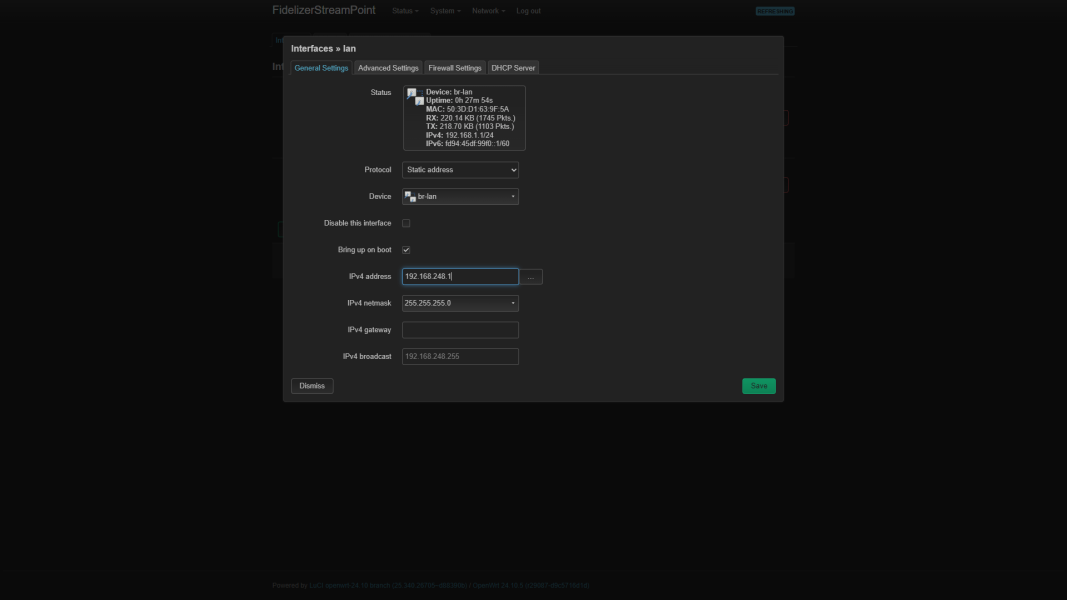
I changed to 192.168.248.1 since my birthday is 24/8 so it's easier to remember lol. After that, you can hit save and apply then access again using new IP address and head to Network > Wireless and enable your wireless radio function first. After that, you can edit wireless
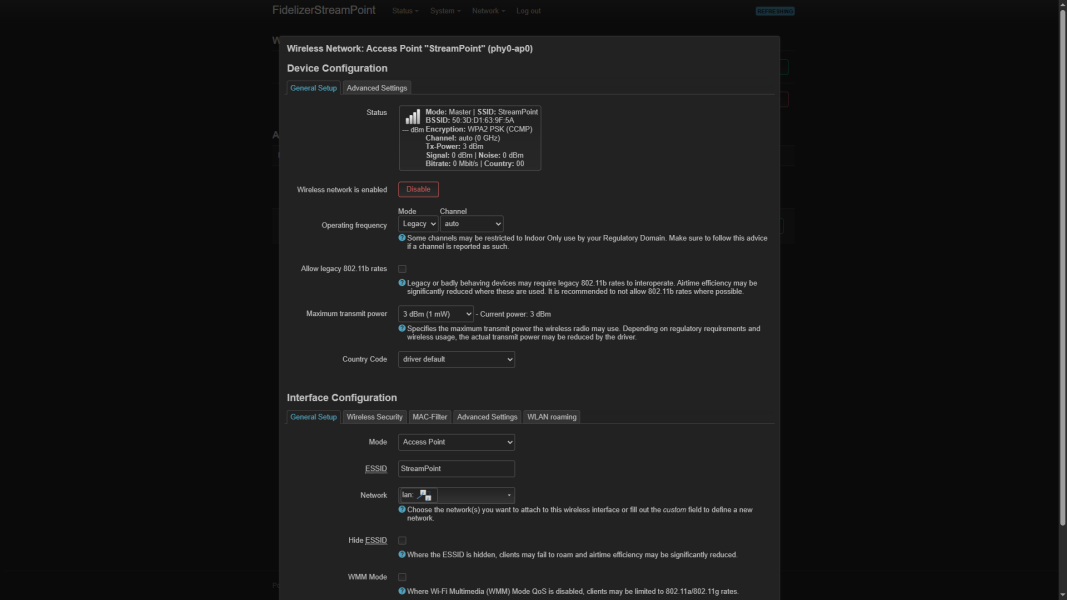
Since we're going to use this as a wireless access point for audiophile purpose only, one device is all we need to send remote control instructions or stream music content. We can go as low as 3 dBm (1mW) and that is still stable enough for my needs. You can bump up to 6dBm (3mW) or 8dBm (6mW) if this router is far from listening spot or need more bandwidth.
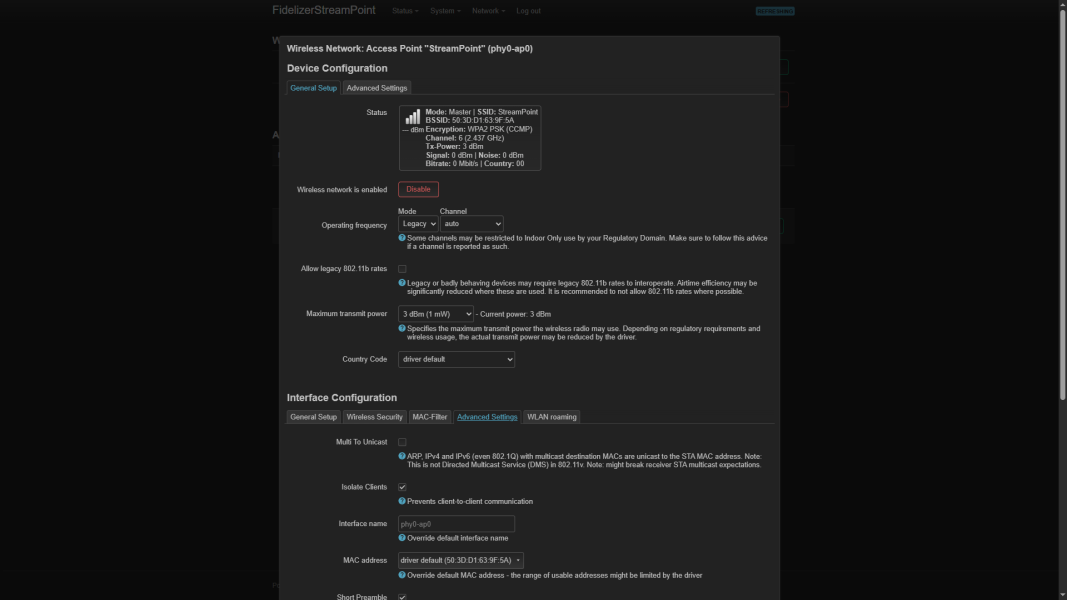
Since WiFi speed is not top priority, you can change operating frequency to Legacy and uncheck WMM mode to get lowest possible latency. Make sure to tick Isolate Clients in Advanced Settings too so no other WiFi devices will interfere in network.
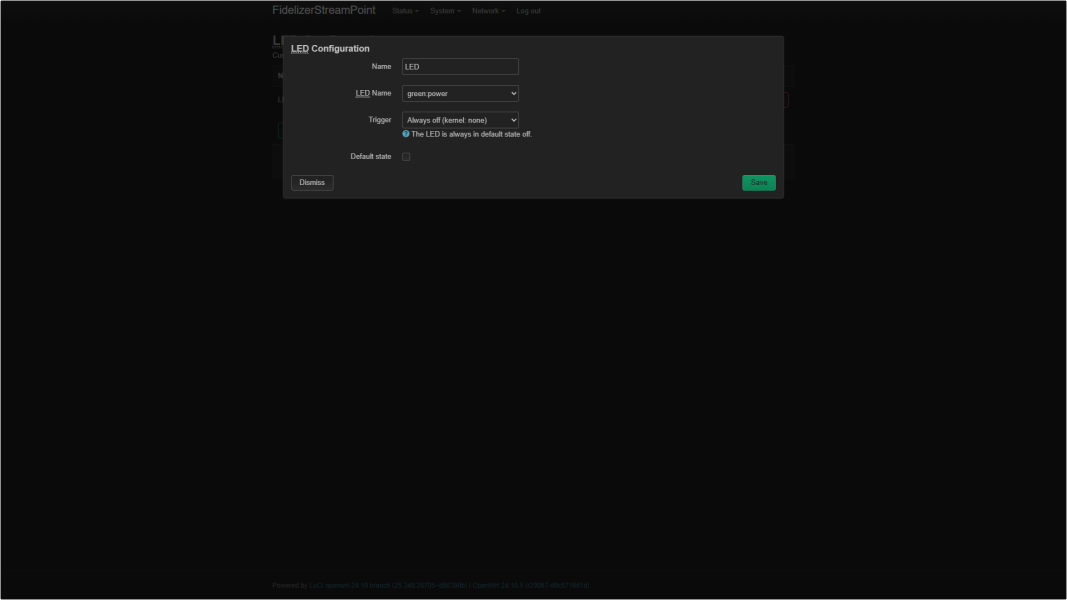
For audiophiles, having LED light being turned off would be appreciated so you can go to System > LED Configuration and add LED action as below to turn off LED light permanently.
There's a lot more to explore in OpenWRT with installable modules and custom scripts to apply but getting started with these changes should help you get very low noise wireless access point now. If you can upgrade internal clock with high precision and low phase noise, it'll sound much better.
By the way, it's also possible to setup Client mode in OpenWRT but the process to get client mode working smoothly is a bit too tricky so you can stick with original firmware and use medium wifi strength instead. The reason why I recommended OpenWRT was to decrease WiFi strength further from 10mW to 1mW.
Regards,
Keetakawee
First of all, why access point mode and not client mode? I have three logical reasons for why I prefer access point mode.
1. Client mode handles all the transmission data from WiFi to endpoint streamer. Even low wifi strength at 10db can't handle streaming reliably at times, let alone running Roon core on it.
2. I have good design network switch / power supply / and cables with good results already. If anything can be a cherry on top of it, that'd be an audiophile grade wifi to access.
3. My network switch can also be powered with external battery powered. So the merit of using battery powered is also possible on my current network switch/router.
With TP-Link Nano router as an access point mode, it won't have throughput limitations for some use cases like Roon Core that needs high bandwidth connection. You can use Roon Remote to access through this new WiFi access point and enjoy the music with reduced noise/jitter in network.
Wireless network has been a missing link in audiophile system for several years. I've developed my own solutions for a few years ahead since market is very slow to catch up with the important of audiophile wireless network. So I'm actually very happy to see @keithc bringing wireless upgrade to the attention of WBF members here.
With OpenWRT on this TP-Link nano router, you can even use battery power source for much longer because you can setup the device to transmit power from 100mW down to with only 1mW! And it can work so well because access point is very close in listening room.
Now that you guys know the appeal of this tweak, let's get started. First of all, you can download latest version of OpenWRT firmware from these links below.
TP-Link WR802N: https://downloads.openwrt.org/relea...plink_tl-wr802n-v4-squashfs-tftp-recovery.bin
TP-Link WR902AC: https://downloads.openwrt.org/relea...link_tl-wr902ac-v4-squashfs-tftp-recovery.bin
I assume you're using current hardware version 4 so these links will work fine. Then, you can follow the instructions to flash OpenWRT firmware from this page below.
1. Install TFTP server such as Tftpd64. You can get one from https://github.com/PJO2/tftpd64/releases/
2. Connect to your TP Link nano router to your PC via Ethernet, and change to static IP address 192.168.0.66
3. Launch the Tftpd64 and route to 192.168.0.66, with the directory where your recovery binary image is saved as tp_recovery.bin
4. Hold down the reset button on the router and power on the unit for ~ 10 seconds. You shouldsee log message on Tftpd64 about copying firmware file into router
5. Wait for a few minutes and change ethernet configuration back to default. You should be able to access Luci control panel with IP address 192.168.1.1
If you are using Mac or Linux, using different tftp server app like Pumpkin for Mac can also work. You can check the original OpenWRT page about TP-Link router from here for more details.
[OpenWrt Wiki] TP-Link TL-WR802N v4
[OpenWrt Wiki] TP-Link TL-WR902AC v3
After accessing OpenWRT, you can access Network > Interfaces menu first and change IPv4 address of lan from 192.168.1.1 to something else that may not conflict with your current network. I have main router with 192.168.1.1 so it caused subnet conflict at first so this will help a lot.
I changed to 192.168.248.1 since my birthday is 24/8 so it's easier to remember lol. After that, you can hit save and apply then access again using new IP address and head to Network > Wireless and enable your wireless radio function first. After that, you can edit wireless
Since we're going to use this as a wireless access point for audiophile purpose only, one device is all we need to send remote control instructions or stream music content. We can go as low as 3 dBm (1mW) and that is still stable enough for my needs. You can bump up to 6dBm (3mW) or 8dBm (6mW) if this router is far from listening spot or need more bandwidth.
Since WiFi speed is not top priority, you can change operating frequency to Legacy and uncheck WMM mode to get lowest possible latency. Make sure to tick Isolate Clients in Advanced Settings too so no other WiFi devices will interfere in network.
For audiophiles, having LED light being turned off would be appreciated so you can go to System > LED Configuration and add LED action as below to turn off LED light permanently.
There's a lot more to explore in OpenWRT with installable modules and custom scripts to apply but getting started with these changes should help you get very low noise wireless access point now. If you can upgrade internal clock with high precision and low phase noise, it'll sound much better.
By the way, it's also possible to setup Client mode in OpenWRT but the process to get client mode working smoothly is a bit too tricky so you can stick with original firmware and use medium wifi strength instead. The reason why I recommended OpenWRT was to decrease WiFi strength further from 10mW to 1mW.
Regards,
Keetakawee
Last edited: